You connect your own number to Esek through Meta's own signup window. We open it, Meta runs it, and the number comes back to us at the end.
The walkthrough below is short. Most of this page is the part after it, because almost everything that goes wrong here goes wrong inside Meta's window, where the message on screen rarely says what to do next.
Before you start
- Phone or computer, either works. In the Esek app on iPhone and Android, Meta's window opens inside the app. On a computer use a browser at esek.io; the desktop app sends you there.
- Do not use the number you sign in to Esek with. Connecting a number without the WhatsApp Business app takes it off WhatsApp, and your sign-in code arrives on WhatsApp.
- Number on the WhatsApp Business app? Keep it. You keep using the app on your phone alongside Esek, and connect by scanning a QR code from the app (version 2.24.17 or later). Esek imports up to 6 months of chat history once you approve sharing it in the app. On personal WhatsApp, move to WhatsApp Business first: it is free and keeps your chats.
- Have the Facebook login ready for whoever owns the business on Meta. The window is Meta's and it asks for a Facebook account.
No spare line? Which lines work and where to buy one.
The walkthrough
- Open the Esek app on iPhone or Android, or esek.io in a browser, and sign in. Go to Go live, or Settings then WhatsApp.
- Press Connect WhatsApp. On a phone Meta's window opens inside the app; on a computer it opens in front of the page.
- Log in to Facebook. Pick a Business portfolio, or create one when Meta offers.
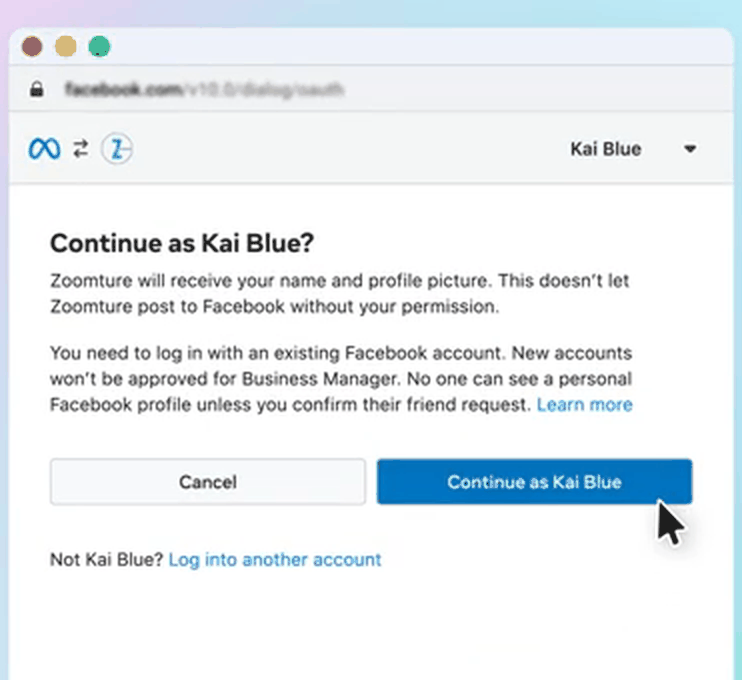
Step 3. Meta asks which Facebook account to continue with. - Pick the phone number, or add it. For the code choose Phone call, not Text message: Meta's SMS often does not reach Israeli numbers. Answer the call and enter the six-digit code. Number on the WhatsApp Business app? Choose to connect the existing app instead, scan the QR code with the app, and approve sharing your chat history.
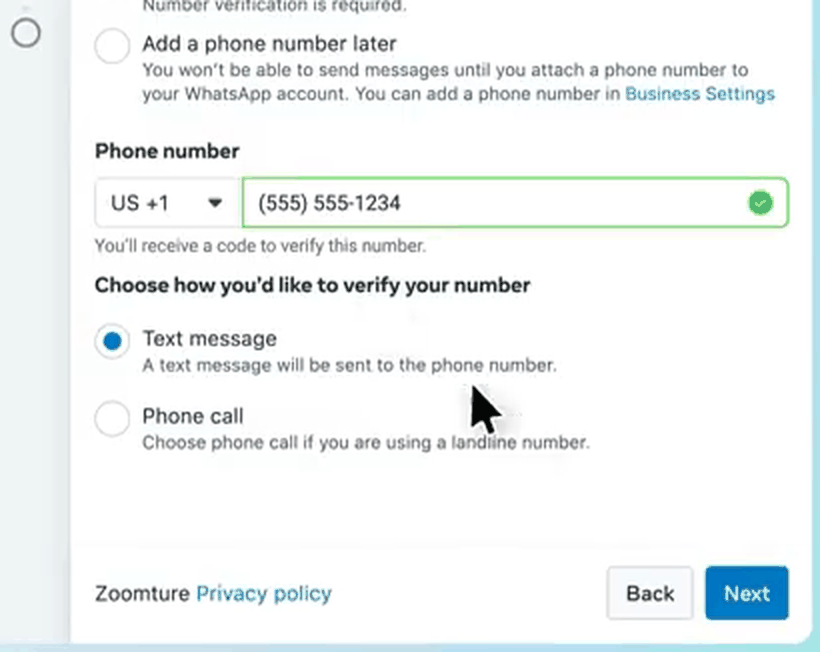
Step 4. The number, then a text message or a phone call. - On the last screen press Finish. Wait for the window to close by itself and for Esek to say the number is connected.
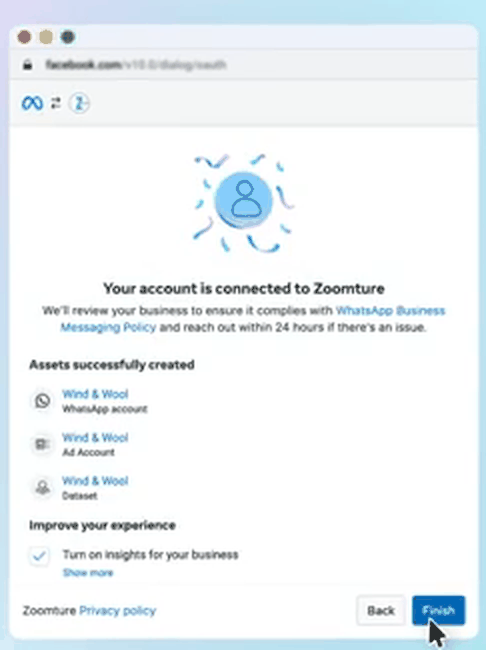
Step 5. Finish sits at the bottom right.
When it goes wrong
Find the sentence closest to what you are seeing.
"There is no Connect button in the app."
There is. In the iPhone and Android apps, Connect WhatsApp is under Go live and under Settings then WhatsApp, and Meta's window opens inside the app. In the desktop app the same button sends you to the browser, because that is where Meta's window runs.
Fix. Update the app to the latest version and try again. If the button still is not there, open esek.io in a browser, sign in, and connect there.
"I pressed Connect and nothing happened."
Meta's window is a browser popup, and your browser blocked it. All you get is a small icon at the right end of the address bar, a window with a line struck through it. No message, no sound, nothing on the page.
Fix. Allow popups for esek.io, then press Connect again. If that does not help, an ad blocker or privacy extension is the next suspect. Turn it off for esek.io, or try a private window with extensions disabled.
"Meta says the number is still on the WhatsApp app."
There is a WhatsApp account on that number, and the route picked in Meta's window was for a number without one.
Fix. Do not delete the account. If it is personal WhatsApp, move it to WhatsApp Business first: it is free and keeps your chats. Then press Connect again, choose to connect your existing WhatsApp Business app, and scan the QR code from the app.
"Meta says the number is already used by another WhatsApp Business account."
The number is already sitting on a WhatsApp Business account somewhere in Meta. An old agency, a previous provider, or an earlier attempt of your own.
Fix. Open Meta Business Manager with the account that owns it, find the WhatsApp account holding the number, and remove the number from it. Then connect again. If nobody can get into that account, only Meta support can release it, and using a different line is usually faster.
"Esek says this number is already linked to another business."
Different problem, same words. This one is ours, not Meta's. The number finished the Meta side, and another Esek workspace already holds it.
Fix. You almost certainly have a second Esek workspace, often from an earlier signup with a different email or phone. Sign in to that one and use it, or write to us and we will move the number.
"Meta wants a Business portfolio and I do not have one."
Normal. A Business portfolio is Meta's container for a business, and most merchants have never made one.
Fix. Create one inside the window. Use the legal business name and a business email address. It does not have to match anything you already have on Facebook. One portfolio is enough, so do not make a second one on a later attempt.
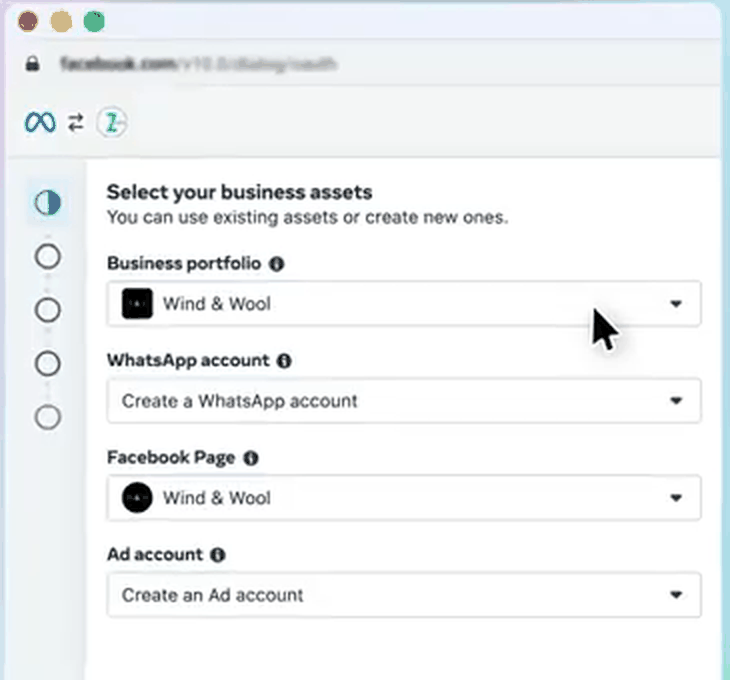
"The portfolio I want is greyed out and I cannot select it."
Meta greys portfolios out in that picker and gives no reason on screen.
Fix. Pick another portfolio, or create a new one, and carry on. Then tell us which portfolio was greyed out. That case needs a manual setup from our side and there is nothing you can do about it inside the window.
"I think I picked the wrong portfolio."
It shows up at the end, not during. Either the number that comes back is not the one you meant, or Esek refuses the connection outright.
Fix. Press Connect again and pick the portfolio that owns the number. Nothing is lost by running it a second time, and Esek refuses a mismatch rather than quietly repointing your workspace at the wrong number.
"Meta is asking for a six-digit PIN and I never set one."
That is two-step verification on the number. Esek sets and keeps that PIN for the numbers it registers, so you are never asked to invent one. Meta asks only when the number already had two-step verification switched on from an earlier setup, and it will not accept a different PIN.
Fix. Turn two-step verification off for that number in Meta's WhatsApp Manager, then connect again. If you cannot get into the account that holds it, write to us with the number before you try again, because repeated wrong PINs get the number locked for a while.
"Meta is asking me to verify my business."
Business verification is Meta asking for documents about the company. It is a separate process and it is not part of connecting a number.
Fix. Skip it and finish the connection. You can come back to it. It raises how many people you may message and unlocks some Meta products, so it is worth doing later. Talk to us before you submit anything, because the details have to match your company registration exactly and a rejected submission is slow to undo.
"Meta said it finished, but Esek says nothing is connected."
The run ended on the last screen without registering the number. The usual cause is leaving that screen through the payment-method button instead of Finish.
Fix. Press Connect again and go through to Finish. Nothing is lost, nothing is charged twice, and the account Meta already made is reused.
"The Meta window is just sitting there."
It stopped talking to us. It will not close itself and it will not finish.
Fix. Close the Meta window, then press Connect again. If the number was created only minutes ago, give it a few minutes first. Meta needs time to publish a new number across its systems, and connecting inside that window fails for a reason that clears on its own.
"I connected the number I sign in with."
That number is now off the regular WhatsApp app, so your Esek sign-in code has nowhere to arrive. You stay signed in on this device, so nothing breaks today. The next sign-out is the problem.
Fix. Do this now, while you are still signed in. In your account, move your sign-in to another number you still use in the regular WhatsApp app. If you have none, put the email address of your Google or Apple account on your Esek account and sign in with that account next time. The address on its own is not a way in, and a different address opens a new, empty account.
Once it is connected
- Connected through the WhatsApp Business app? Keep using it. Replies you send from the phone show up in Esek, and the AI holds back briefly, then carries on.
- Group chats are not synced. Open the WhatsApp Business app on your phone at least once every two weeks, or WhatsApp disconnects it.
- Connected without the app, the number no longer works in a WhatsApp app.
- Customer messages to that number land in Esek.
- Phone calls are separate. If you want unanswered calls answered too, set up call forwarding: the three-step forwarding guide.
Still stuck? Message us on WhatsApp from any page on esek.io, or email info@esek.io. Send the number and a photo of what is on screen.
For onboarding staff
Collect before opening the window:
- The number to connect, and whether it is on personal WhatsApp or the WhatsApp Business app (2.24.17 or later).
- The number the merchant signs in to Esek with. Confirm they are not the same.
- Who holds the Facebook login for the business, and whether that person is on the call.
- Whether the number has ever been on a WhatsApp Business account before.
Do the run in a browser with popups allowed and extensions off. Watch the last screen and press Finish yourself.
Escalate to us rather than retrying:
- A greyed-out portfolio in the picker.
- A PIN prompt on a number nobody can unlock.
- A number Meta reports as held by an account the merchant cannot reach.
- Two failed runs with the same message. A third will fail the same way.